Configuration
In the kiosk configuration section, you can view and modify each created kiosk.
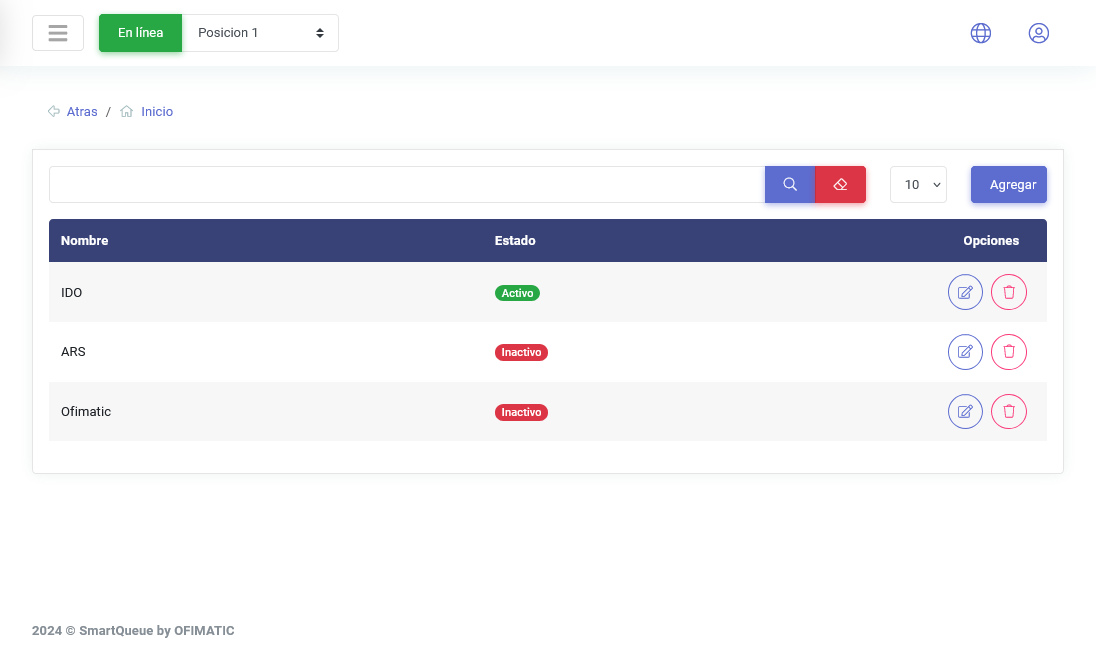
This view displays the following fields:
| Column | Description |
|---|---|
| Name | displays the name with which the kiosk was configured. |
| Status | displays the kiosk status, indicating whether it is active or inactive. |
| Options | displays the available buttons to edit or delete the kiosk. |
Create and update kiosks
Create kiosk
To create a kiosk, click the Add button. The kiosk creation form will then be displayed.
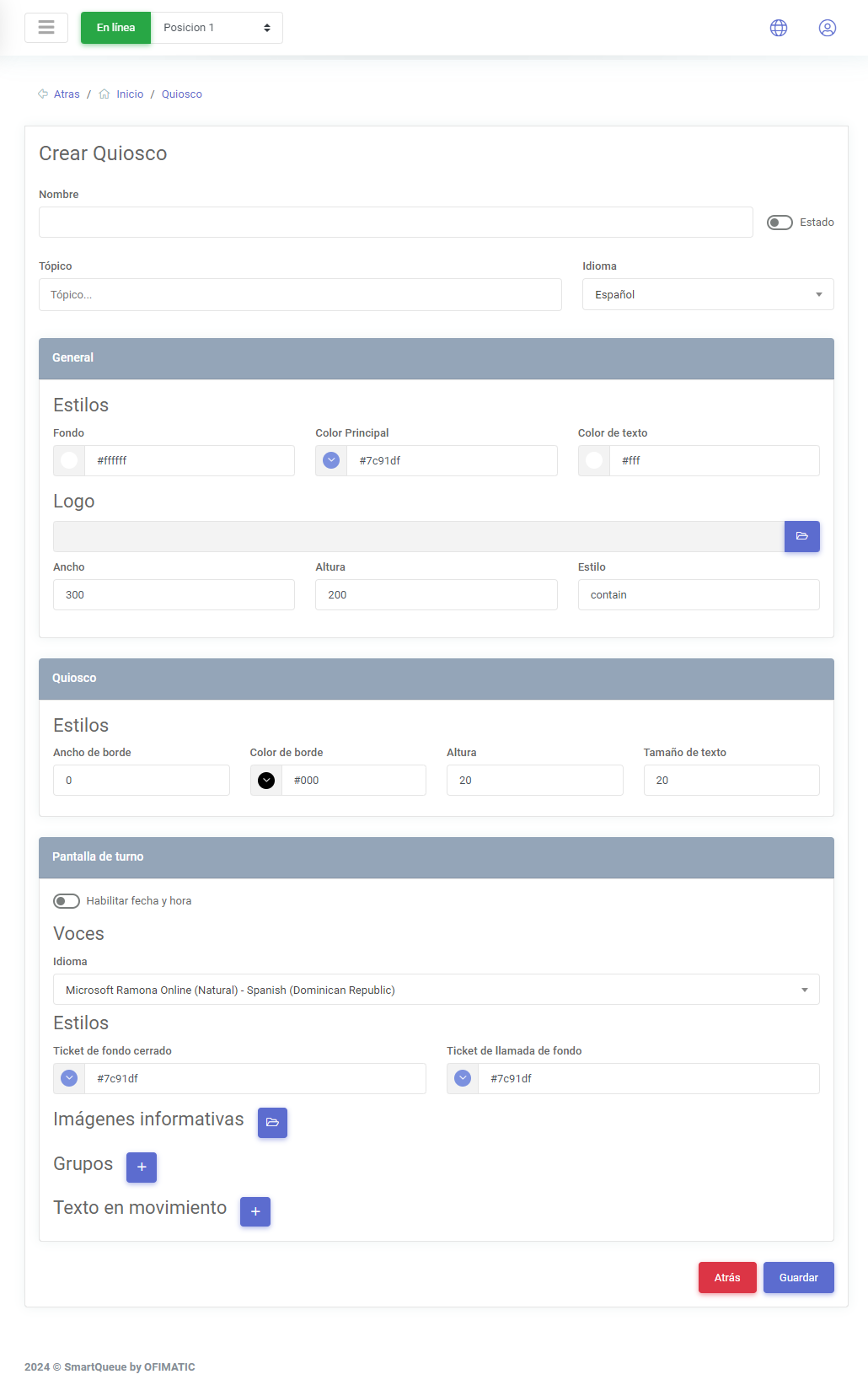
This form is divided into several areas to complete each field required to create the kiosk.
Create kiosk
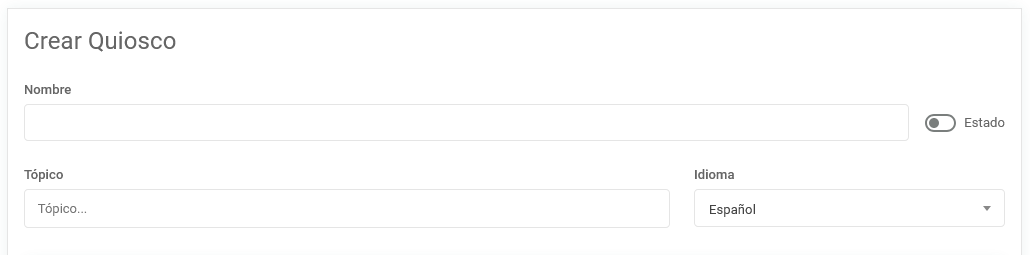
The first step to create the kiosk is to complete this section:
| Field | Description |
|---|---|
| Name | indicates the name assigned to the kiosk. |
| Status | indicates whether the kiosk will be active or inactive when it is created. |
| Topic | indicates the topic or topics that will be displayed on the kiosk screen. |
| Language | indicates the language in which the ticket or turn will be printed. |
Considerations
For topics to be visible in the kiosk, they must have the Generate turns functionality enabled. This option can be enabled in the following section.
General
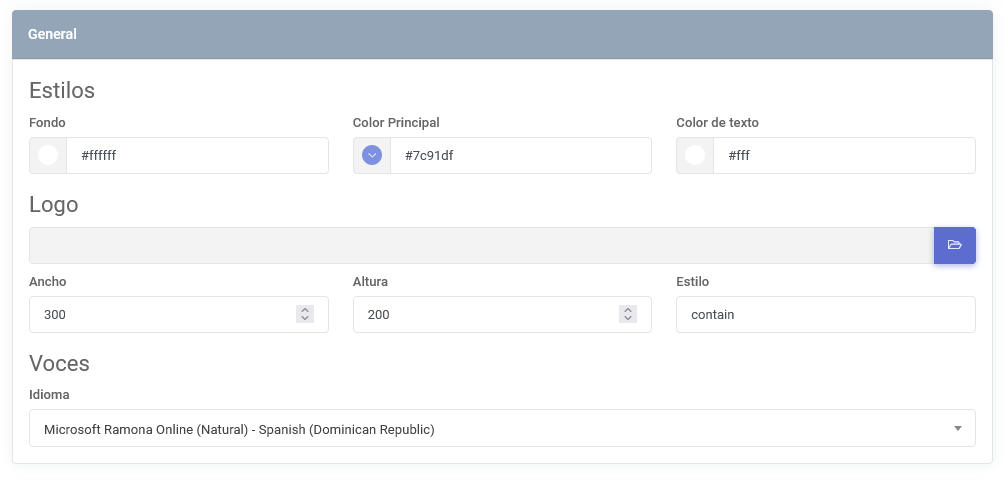
In the General section, the kiosk’s general settings are configured.
Styles
| Name | Description |
|---|---|
| Styles | allows you to modify the style of both the kiosk and the turn display screen. |
| Background | allows you to modify the background color of both the turn display screen and the kiosk. |
| Main color | allows you to modify the button color. |
| Text color | indicates the color of the text displayed on the buttons. |
Logo
| Name | Description |
|---|---|
| Logo | allows you to add a logo or image that will be shown when printing and also displayed in the kiosk. |
| Width | allows you to modify the width of the image placed in the kiosk. |
| Height | allows you to modify the height of the image placed in the kiosk. |
| Style | allows you to modify the added HTML style. |
Voices
| Name | Description |
|---|---|
| Voices | allows you to configure the voices for the turn display screen. |
| Language | allows you to configure the language used to call the turns that are in queue. |
Voice considerations
To get the full voice functionality, it is recommended to use Microsoft Edge, since the voices are generated by the browser and this browser offers greater voice availability.
If you do not use Microsoft Edge, you may use another browser, keeping in mind that it may not provide the full capability required to perform the calls.
Kiosk
This section defines and manages the changes you want to apply to the kiosk buttons.
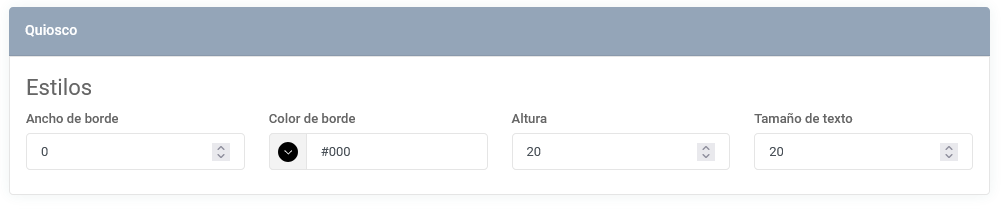
| Name | Description |
|---|---|
| Styles | allows you to modify button styles. |
| Border width | allows you to set the border between buttons so they are displayed correctly. |
| Border color | allows you to set the button border color. |
| Height | allows you to adjust the button height. |
| Text size | allows you to adjust the text size. |
Turn display screen
This section configures the styles and images of the turn display screen.
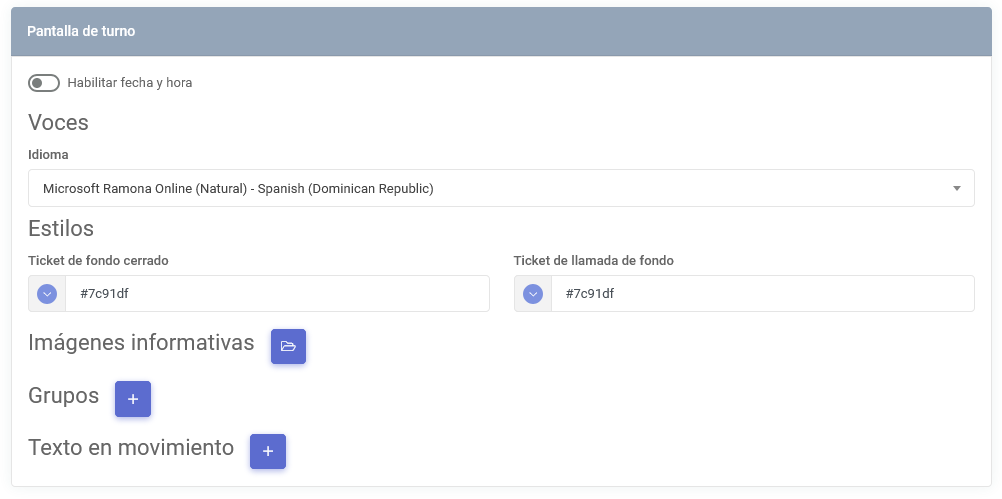
Styles
| Name | Description |
|---|---|
| Closed ticket background | allows you to configure the color users will see when their ticket has been completed. |
| Call ticket background | allows you to configure the color that indicates which turn is being called. |
| Enable date and time | allows you to enable or disable the display of the date and time in the view. |
| Informational images | allows you to specify advertising images or other resources that will be shown on the turn display screen. This section supports image files such as png and jpg, as well as video files in mp4 format. |
| Groups | allows you to create groups to segment the topics added to the kiosk. |
| Moving text | allows you to enter text that will be constantly displayed at the bottom of the screen. |
To learn more about the turn display screen, see the following link.