Template
A template must be configured for each created topic. This template defines how the details of generated tickets will be displayed.
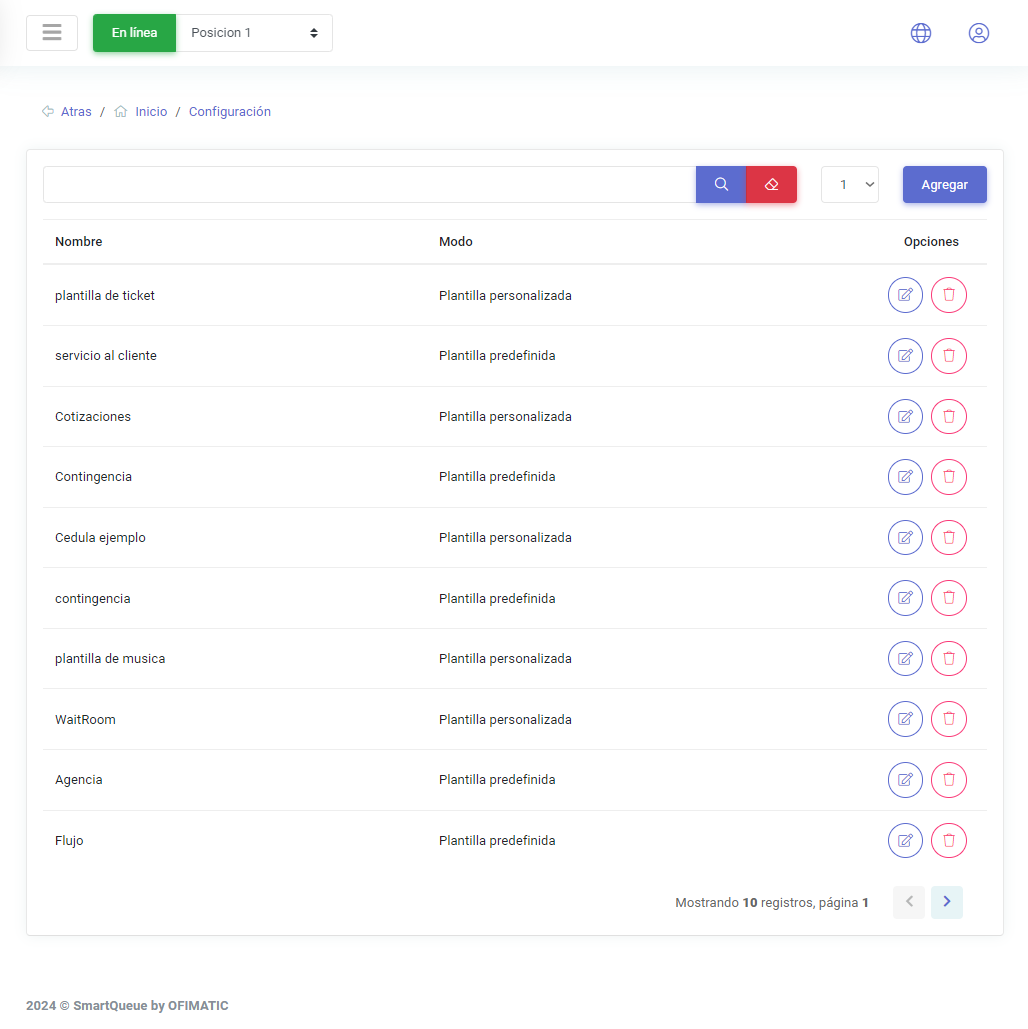
The template section displays a table with the following columns:
| Name | Description |
|---|---|
| Name | indicates the name of the created template. |
| Mode | indicates the type of template being used. |
| Options | allows you to edit and view templates. |
Create and update template
Create template
To create a template, click the Add button. The following view will then be displayed:
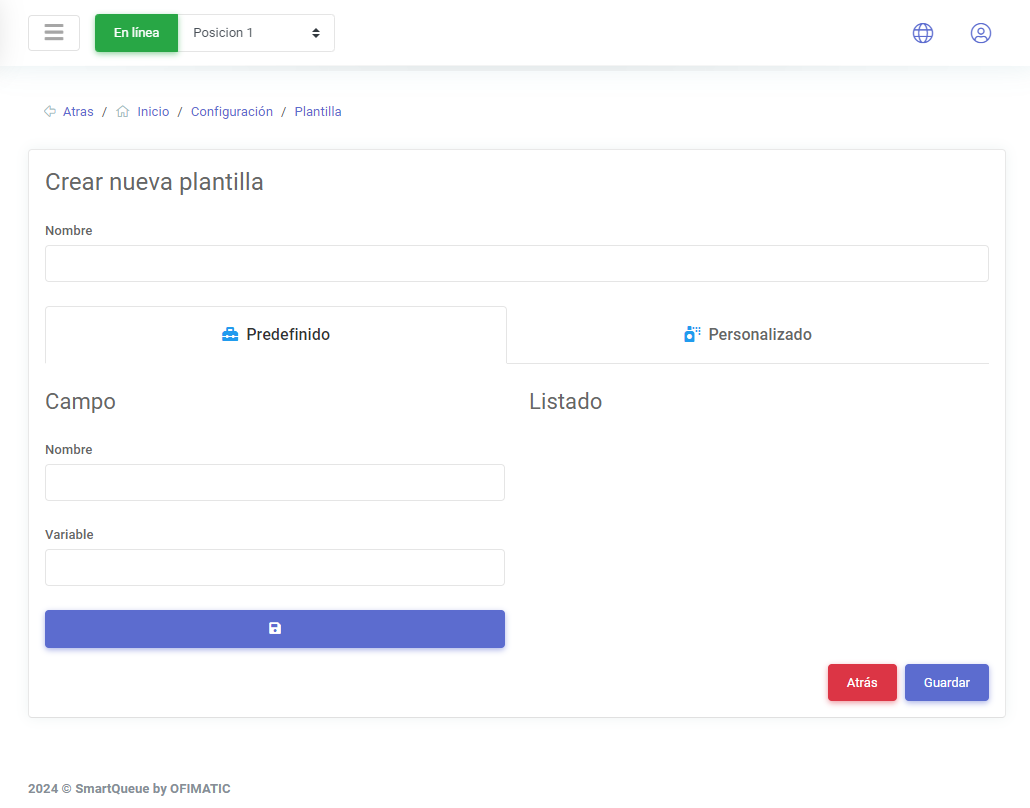
This view displays the fields required to create a template.
- Name: allows you to enter the name of the template being created.
The template can be configured in two ways: using a predefined template or a custom template.
When the predefined template option is selected, the following fields are used:
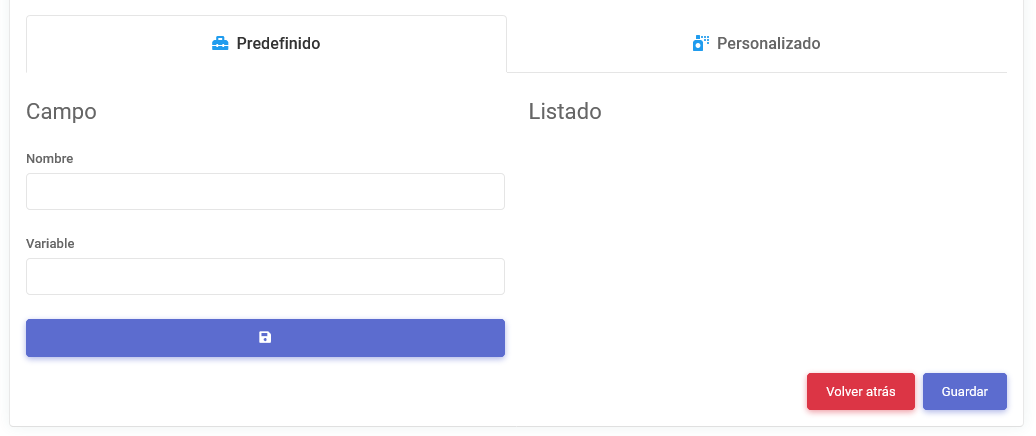
- Name: indicates the name of the variable being created.
- Variable: indicates the name the variable will have in order to apply the corresponding changes.
If you want to create a template with custom data, it is recommended to use the custom templates section.
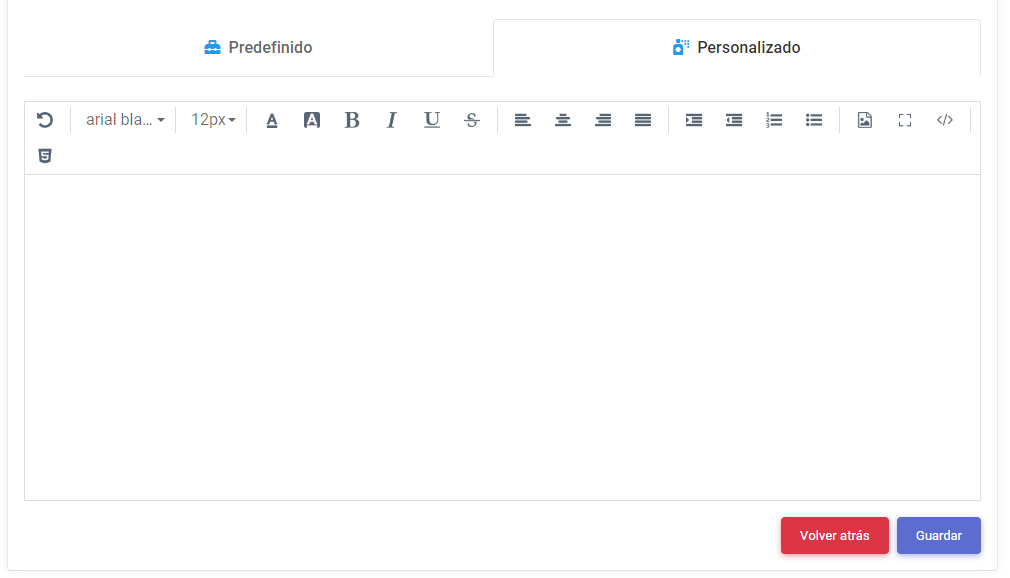
This field allows advanced customization to display ticket details using HTML elements.
Update template
To update a template, click the edit button. The edit view will then be displayed.
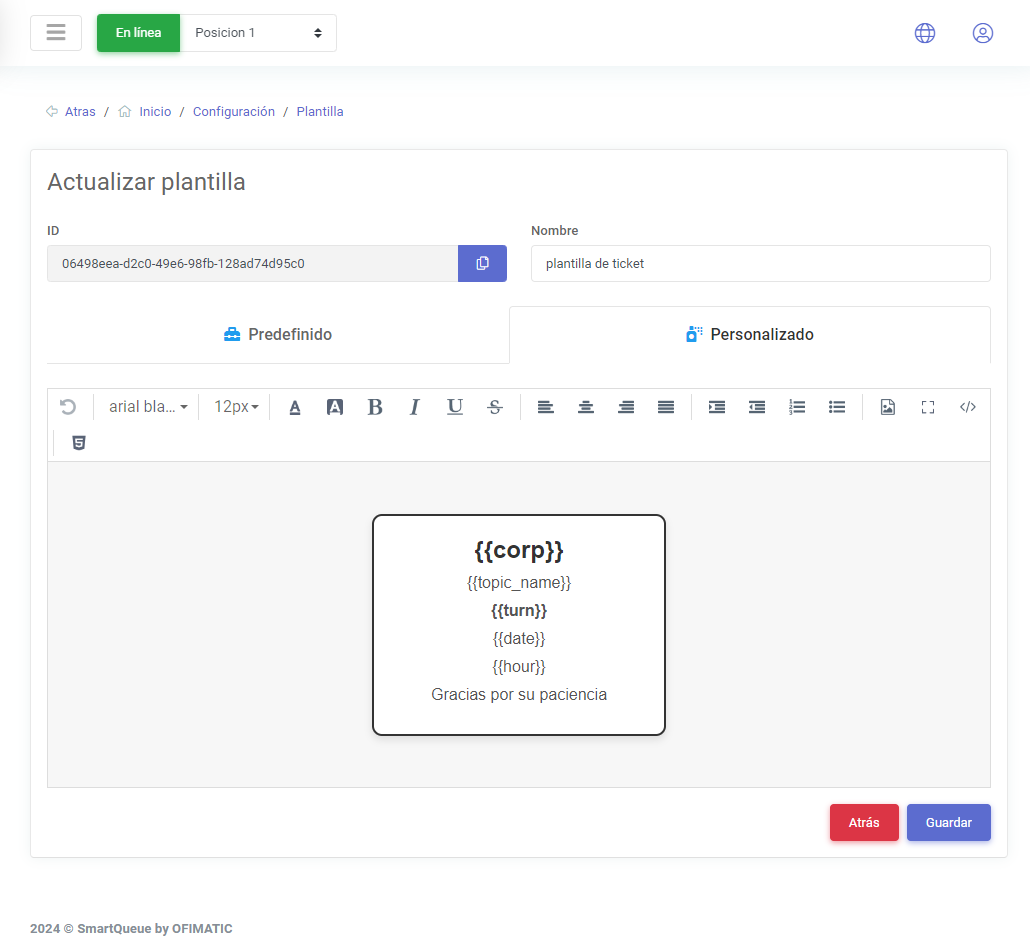
This view displays the same fields used when creating a template. It also allows you to edit the custom view.