Topic
In the topic view, you can see each created topic, as well as the departments and branches to which they are assigned.
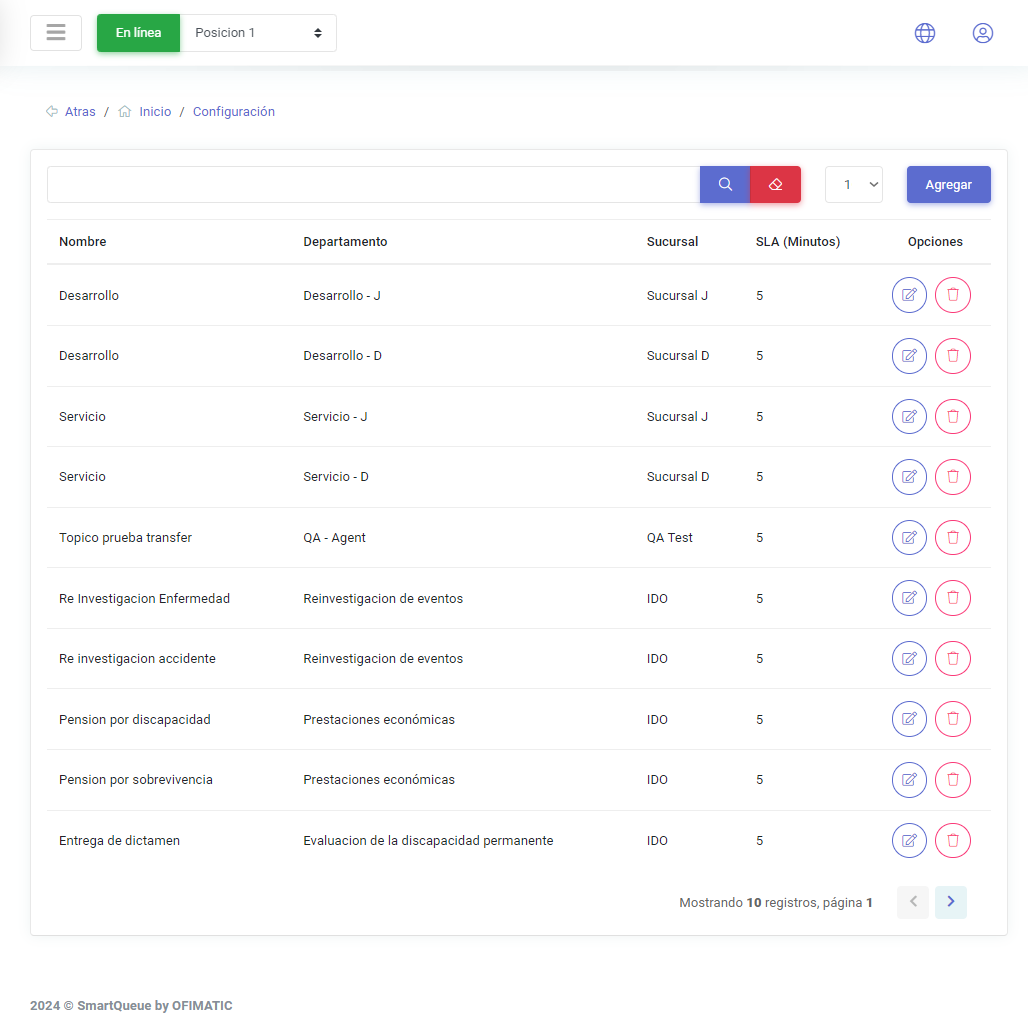
| Name | Description |
|---|---|
| Name | indicates the name of the created topic. |
| Department | indicates the name of the department associated with the topic. |
| Branch | indicates the branch where the topic is located. |
| SLA (Minutes) | displays the SLA configured for the topic. |
| Options | allows you to edit each created topic. |
Create and update a topic
Create a topic
To create a topic, click the Add button. The creation view will then be displayed.
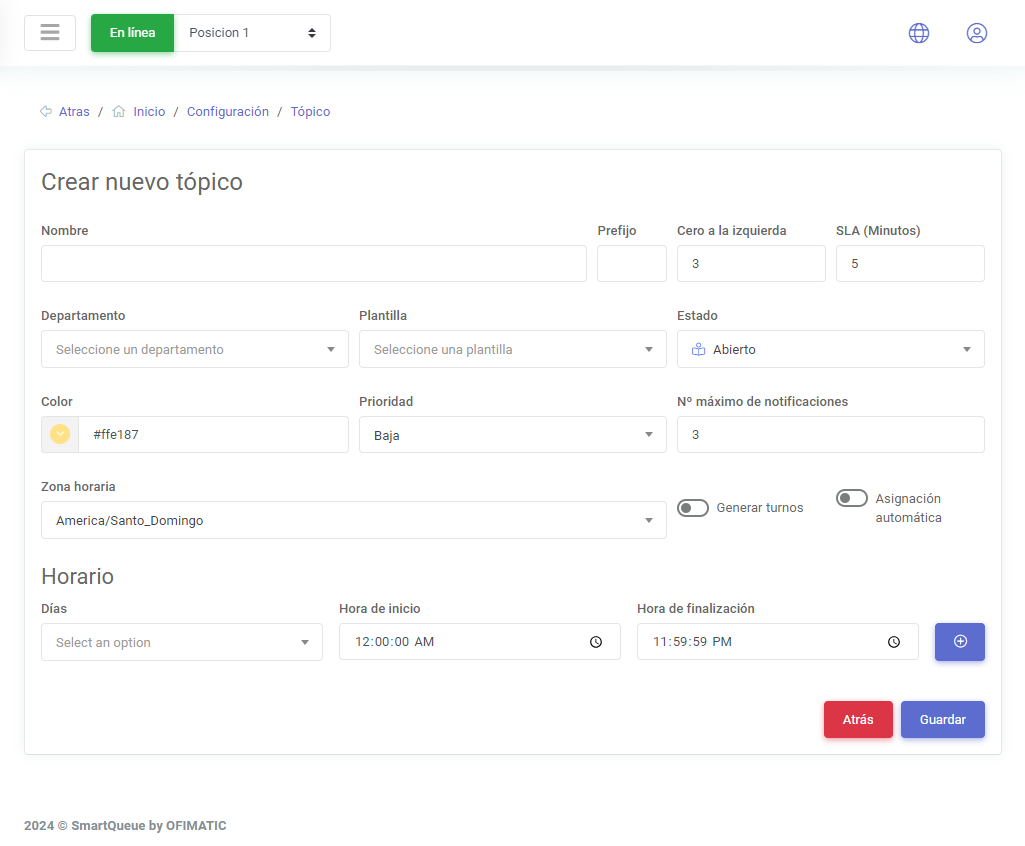
This screen displays the fields required to create a topic.
| Name | Description |
|---|---|
| Name | allows you to enter the name that will identify the topic being created. |
| Ticket prefix | allows you to define the format the ticket will have when assigned. |
| Leading zero | allows you to indicate how many zeros will be added for ticket display. |
| SLA | allows you to configure the SLA of the ticket being generated. To learn more about what an SLA is, see the following link. |
| Department | indicates the department to which the topic will be associated. To learn more about departments, see this link. |
| Template | indicates the template that will be associated with the ticket being created. This information can be viewed in the details section, in the ticket view. |
| Status | allows you to select the status the ticket will have when it is created. |
| Color | allows you to assign a custom color to the topic to differentiate it from others in the dashboard. |
| Priority | allows you to indicate the priority of the topic being created. |
| Maximum number of notifications | allows you to indicate to the turn calling system the maximum number of notifications to be sent. |
| Time zone | allows you to indicate the time zone in which turns will be configured. |
| Generate turns | enabled when new turns need to be generated. |
| Automatic assignment | indicates whether the topic will be automatically assigned to active agents. |
Schedule
This section allows you to configure a schedule for the topic being created and define whether it will use a selected schedule.

Considerations
To complete this process, click Save.
Update a topic
To update a topic, click the edit button. The update view will then be displayed.
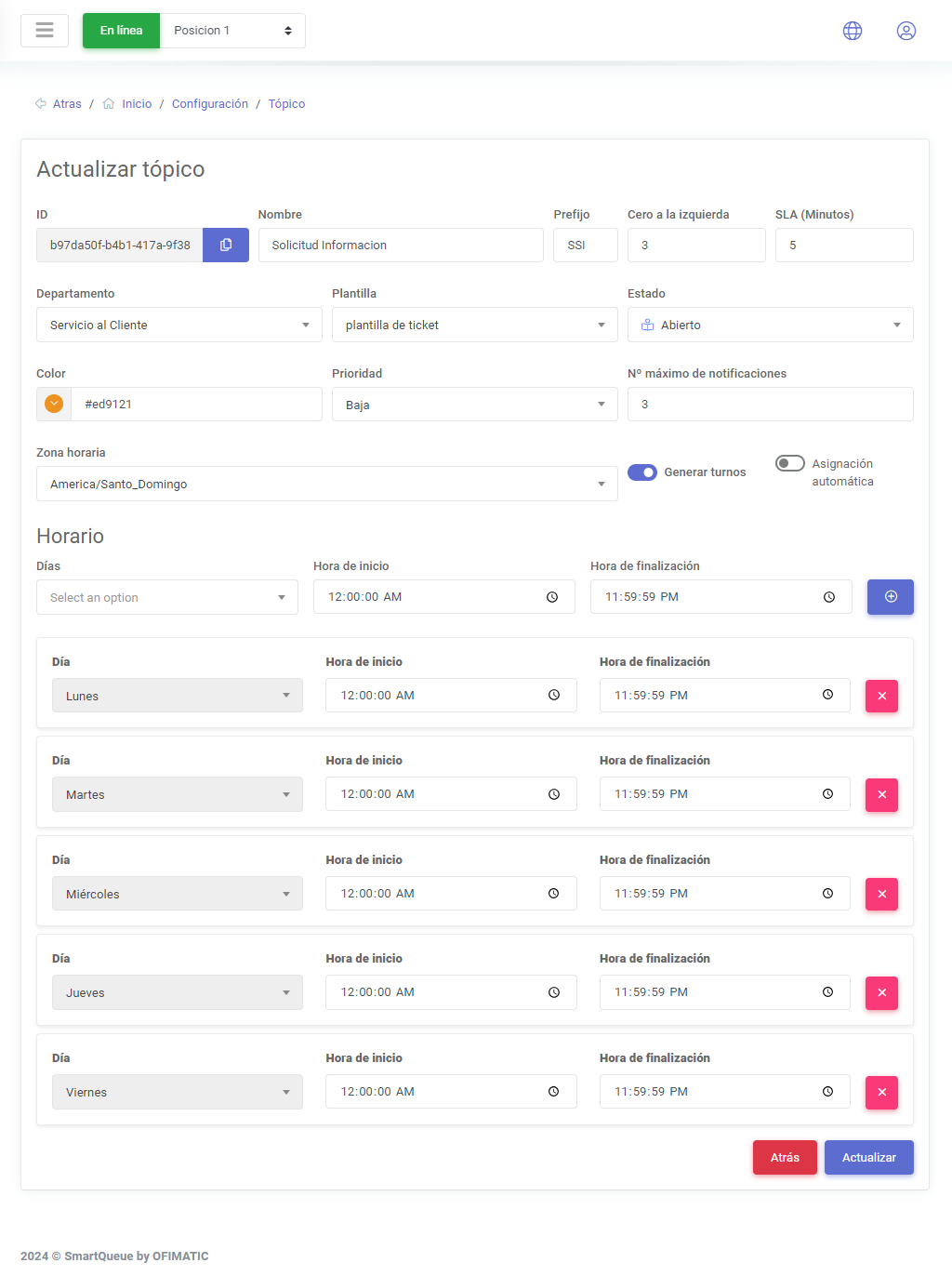
This view displays the same fields as the create a topic section. Each of these fields can be modified. It is also possible to copy the ID of the topic being updated and enable or disable the topic.